About Voice API
About Voice API (Text-to-Speech)
When the conversation type is "LLM" or "LLM Function calling", the text output by the AI(LLM) must be converted to speech. This conversion technology known as Text-to-Speech (TTS). ACUAH uses a voice synthesis engine in the cloud to perform this conversion to speech.
ACUAH supports the following two types of text-to-speech engines:
- Microsoft Azure AI Speech
- VOICEVOX (Japanese only)
Microsoft Azure AI Speech
This is a cloud-based text-to-speech service provided by Microsoft.
- ACUAH applications have restrictions on the countries where they can be published. Some languages supported by Azure AI Speech cannot be used with ACUAH.
- Credit card information is required when creating an Azure account. (Creating an account alone will not incur charges.)
Using Azure AI Speech requires an API key. The acquisition procedure is described below. (Procedure as of February 20, 2026.)
1. Log in to the Microsoft Azure platform
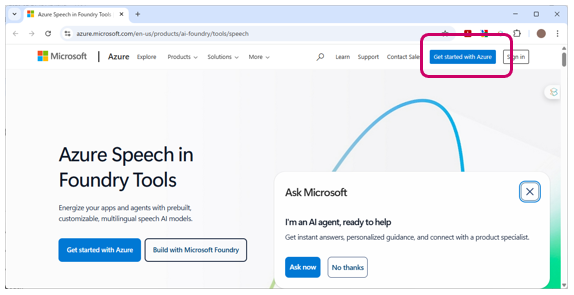
- Open FoundryTools' Azure Speech.
- Click "Get started with Azure" in the top-right corner.
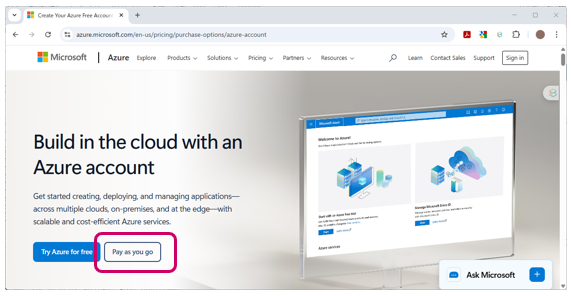
- Click the "Pay as you go" button in the bottom left corner.
2. Create a Microsoft Azure account
If you don't have an Azure account, create a new one.
- A window will appear on the right side of the screen for entering account creation information.
- Complete Steps 1 through 4 by entering the required information to create your account.
- Step 3 requires entering your credit card information. (Creating the account alone will not incur charges.)
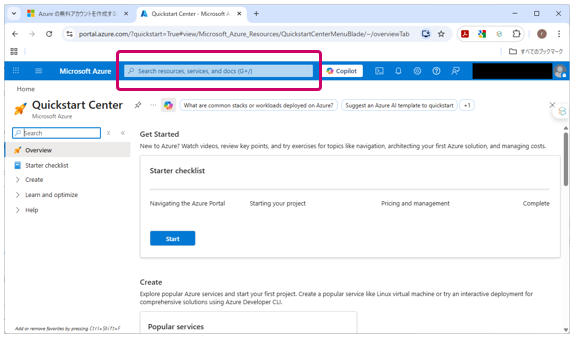
- Once your Azure account is successfully created, the Azure portal screen titled "Quickstart Center" will appear.
3. Create an API Key
- In the search bar labeled "Search resources, services, and docs (G + /)" at the top, enter "Speech".
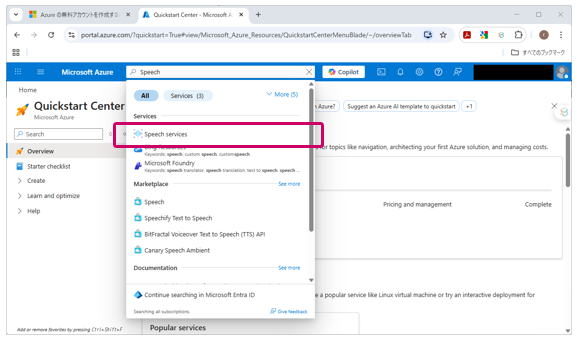
- The search results will appear. Click "Services" > "Speech services".
- Click the "+ Create" button located near the bottom center of the screen.
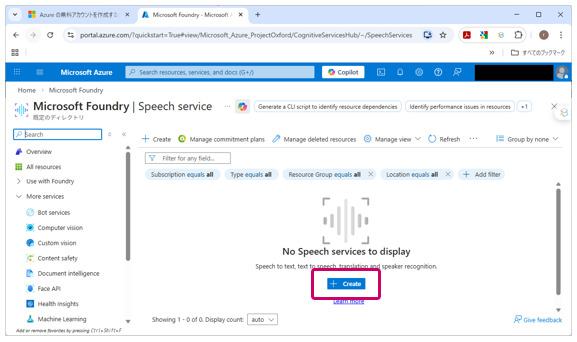
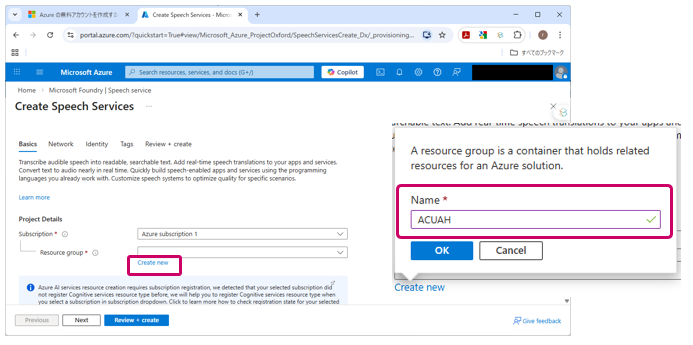
- The "Create Speech Services" screen will appear. Click "Create New" below the "Resource group" field.
- A pop-up like the one on the right appears. Enter an appropriate Resource group name in the "Name" field.
(Example Settings)
Name: "ACUAH"
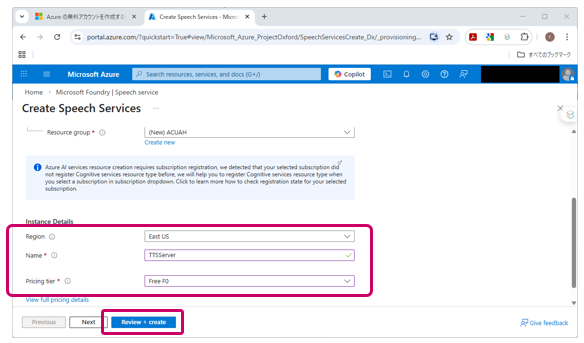
- Scroll down on the same screen to find the "Instance Details" section. Enter or select values for each field.
(Example settings)
Region: "East US"
Name: "TTSServer"
Pricing tier: "Free F0"
- After completing the "Instance Details" input/selection, click the "Review + create" button.
- You can select regions other than "East US".
- When configuring VoiceAPI for ACUAH, ensure you enter the appropriate "Region" string.
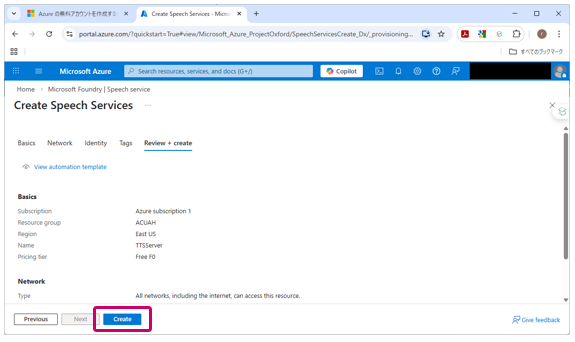
- The server information to be created will be displayed. Review it and click the "Create" button.
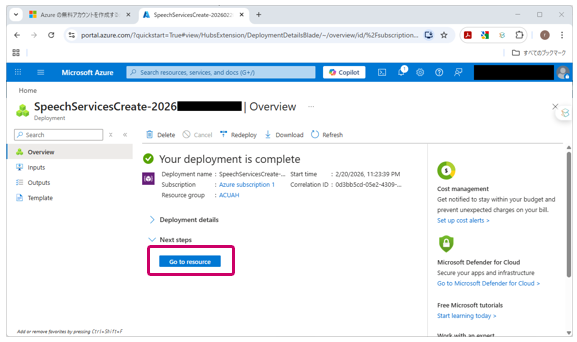
- After a short wait, the server will be created, and the "SpeechServicesCreate-******** | Overview" screen will appear.
- Verify that "Your deployment is complete" is displayed, then click the "Go to instance" button.
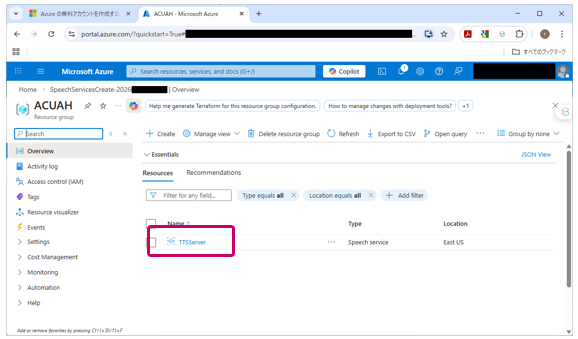
- The created server (e.g., "TTSServer") will be displayed. Click the server name.
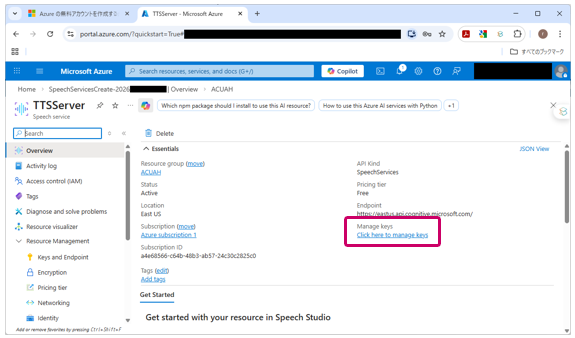
- Information about the created server (e.g., "TTSServer") will be displayed. Click "Click here to manage keys" in the bottom-right corner.
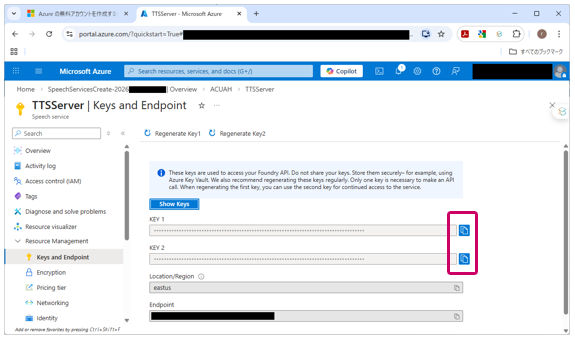
- The API key information will be displayed. Set this API key string in ACUAH.
- Click the copy button to the right of either "KEY 1" or "KEY 2" to copy the API key string. (Either "KEY 1" or "KEY 2" API key string is acceptable.)
- Also, copy the "Location/Region" string (e.g., "eastus") from the example.
VOICEVOX
We operate a dedicated VOICEVOX server for ACUAH. It is available for free use from ACUAH, but please note the following points.
- This server is for Japanese voice synthesis.
- This is a publicly available server provided free of charge.
- Quality is not guaranteed.
- Available characters may not be the latest versions (depends on the software version on the server).
- Each character and voice has its own Terms of Use. Please comply with and use them appropriately.