About AI(LLM) API
About AI(LLM)
ACUAH does not implement one specific AI(LLM) like ChatGPT or Gemini, allowing users to freely select and configure AI. However, as described in the Voice interaction architecture, when the conversation type is set to "LLM" or "LLM Function calling", configuration to integrate the AI(LLM) with ACUAH is required.
Please note that with the current ACUAH, obtaining API keys for each AI (LLM) and upgrading to a paid plan is either mandatory or recommended.
- Generate an API key from each AI platform
- Upgrade each API to a paid plan (mandatory or recommended depending on the AI (LLM))
Please refer to the example OpenAI API key acquisition procedure below. (The process is largely similar for other AI(LLMs).)
Example OpenAI API Key Acquisition Procedure
- Obtain the ChatGPT API key.
- Upgrade the OpenAI API pricing plan to a paid plan. (Credit card information is required.)
If the account using the API is on a free plan, it is highly likely to become unusable immediately due to rate limit errors. We therefore recommend using a paid plan. (Please note that we have confirmed operation using paid plans.)
1. Log in to the OpenAI API Platform
(The following screenshots are as of February 20, 2026.)
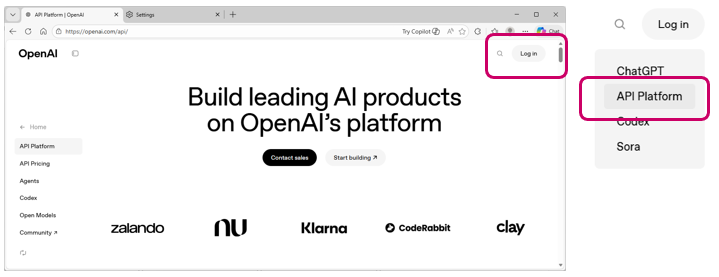
- Open the OpenAI API Platform.
- Hover your mouse cursor over "Log in" in the top right corner. A menu will appear, click "API Platform".
2. Create an OpenAI Account
If you don't have an OpenAI account, create one.
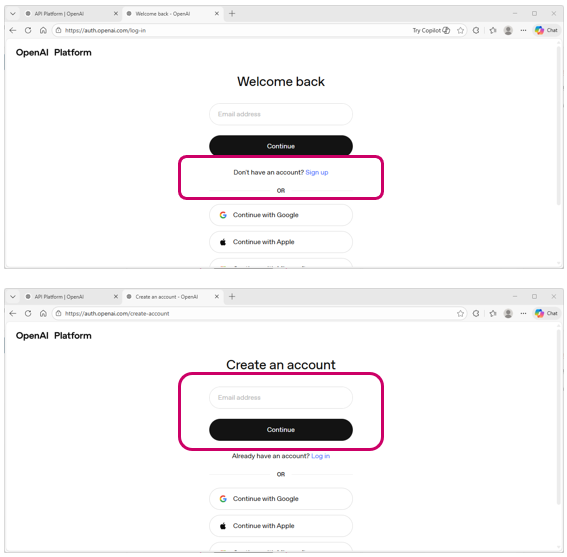
- Click "Sign up" under "Don't have an account? Sign up" in the center of the screen.
- The "Create an account" screen will appear. Enter your email address, etc., create your account, and then log in.
3. Create an API Key
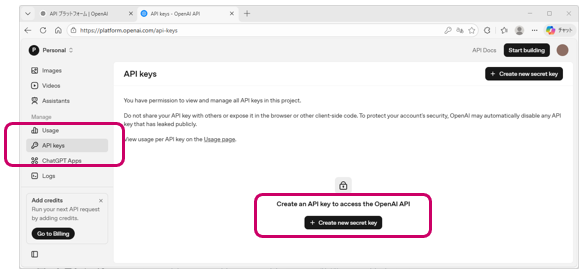
- After logging in, click "API keys" in the left menu.
- You'll see "Create API key to access the OpenAI API". Click "+ Create new secret key" below it.
- The "Create new secret key" window will appear. Enter a name (using only letters) for managing the API key in the "Name" field, then click the "Create secret key" button at the bottom right of the window.
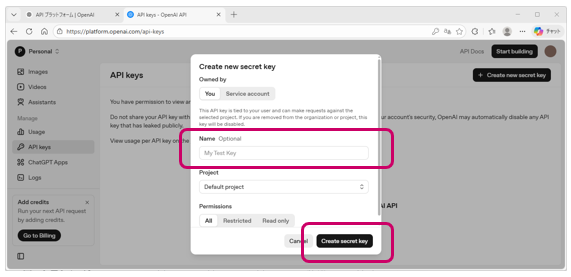
- Once the key is created, the "Save your key" window will appear.
- The generated API key will be the string sk-proj-******** in the center of the window.
- You will need to set this API key (the sk-proj-******** string) in ACUAH, so click the "Copy" button to copy it.
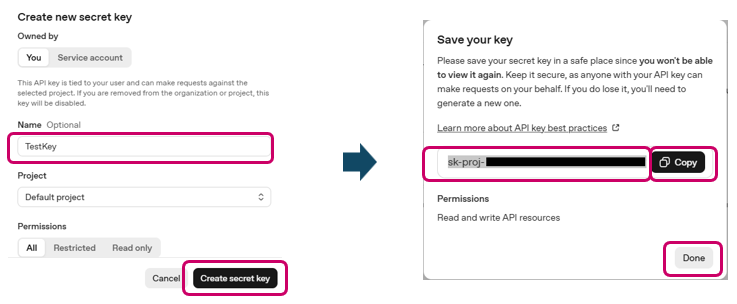
The API key is only displayed once. Click the "Copy" button, paste it into a text editor or similar app, and save it for future use.
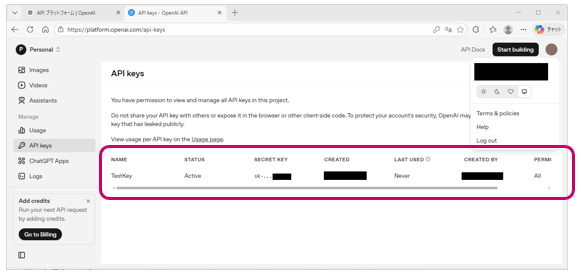
- Verify the created API key appears in the list.
4. Upgrade to a Paid OpenAI API Plan (Recommended)
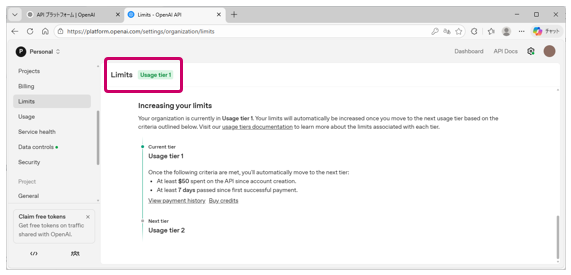
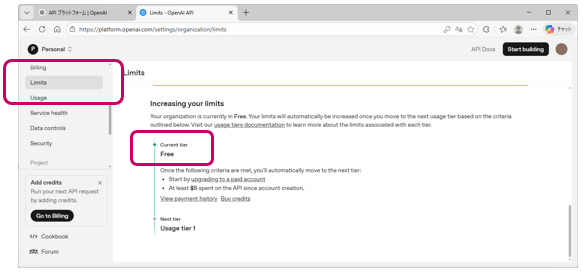
- Select "Limits" from the left-hand menu.
- Scroll down the center of the screen to find the section labeled "Increasing your limits".
- If "Current tier" shows "Free", you are on the free plan. Proceed to set up a paid plan.
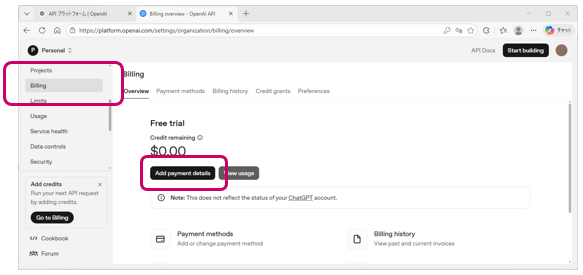
- Select "Billing" from the left-hand menu.
- Click "Add payment details".
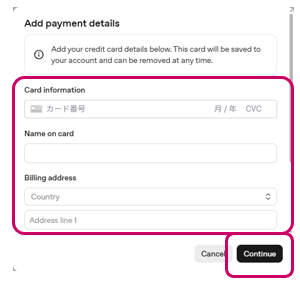
- Enter your credit card information.
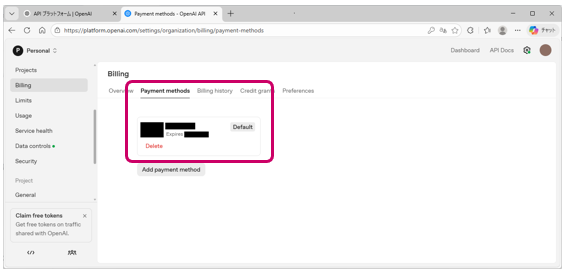
- Verify that the registered credit card information appears under "Payment methods".
- Select "Limits" again from the left-hand menu.
- Verify that "Usage tier *" is displayed to the right of "Limits".